Local Export for Gmail
The quick answer: select conversations with Gmail’s checkboxes, click Export selected, review the selection, then click Export ZIP. Each conversation becomes its own PDF in the saved ZIP.
Choose a useful batch
Start in desktop Chrome with Gmail signed in. Use your inbox, a label or a Gmail search to find the conversations you want. Select their checkboxes, then click the extension’s Export selected button.
For example, search for has:attachment to find mail with attachments, or from:alex@example.com to find messages from a sender. The example address is fictional. Select the conversations you actually need rather than exporting your whole inbox.
Before installing: Install Local Export for Gmail from the Chrome Web Store. Refresh Gmail after installation so the export button appears.
Check the selection, then export
Review the conversation list.
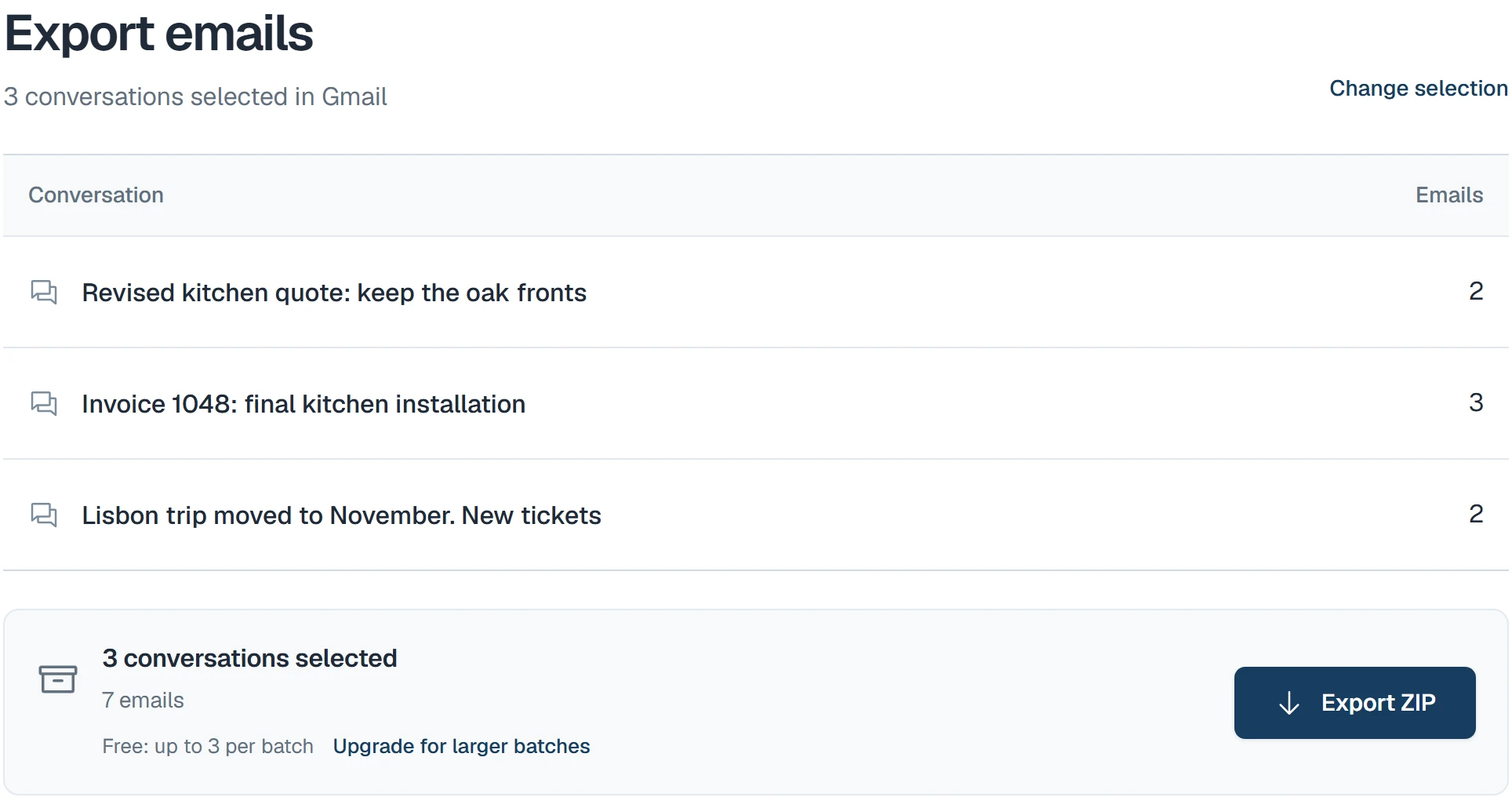
Check the subjects and email counts in the export tab. A conversation includes all its replies, not only the messages matching your Gmail search.
Click Export ZIP.
Preparation progress stays visible as conversations are processed. The attachment total grows as original files are found. Keep Gmail and the export tab open.
Wait for Export saved.
Preparing and saving are separate stages. The download may take longer for large attachments or image-heavy emails. The demo shows the steps, not a promised export time.
Click Show in folder and extract the ZIP.
You will find one folder per conversation. Open its PDF and use the attachments folder for the original files.
How many can I export?
Free: up to 3 conversations per batch, with no daily quota and no watermark. Pro: up to 50 conversations per batch for €29 once, on 2 active browsers. PDF quality and attachment handling are the same.
A conversation can contain several emails. Both plans have a safety limit of 200 emails and 100 MiB of source content plus fetched images per export. The final ZIP is limited to 200 MiB. Split larger collections into smaller selections.
What the result looks like
This example collects a travel reimbursement, a project handover and a booking confirmation. You can open the PDFs to read their replies and dates, while the receipts, project notes and itinerary remain separate usable files. Conversation folders make it clear which files belong together.
The sample batch produces 3 PDFs, 7 emails and 5 original attachments. Its folders keep the conversations separate. Conversations without attachments still get a PDF.
01-September travel reimbursement/
  conversation.pdf
  attachments/
02-Website handover & project notes/
  conversation.pdf
  attachments/
03-Booking confirmation · 予約確認/
  conversation.pdf
  attachments/
  text copies for scripts not searchable in the PDF
export-report.json
READ-ME.txt
What if I need my whole Gmail mailbox?
Local Export for Gmail exports selected conversations in batches. It is useful when you want readable PDFs and the original attachment files together. It does not export your entire mailbox in one operation.
For a broader archive of your Google account data, use Google Takeout. You can choose Mail when selecting the data to download. A Google data archive serves a different purpose from the conversation PDFs and separate attachment files shown in this guide.
If a conversation needs attention
The affected row explains what happened. Use Retry to retry failed conversations; already prepared conversations are retained. If you choose Save partial export, only the available conversations are saved, with omissions recorded in the report.
If the selection expires, return to Gmail and select the conversations again. Keep the Gmail account and tab open during export. Check support for download, image and licensing questions.
Try a business-style sample
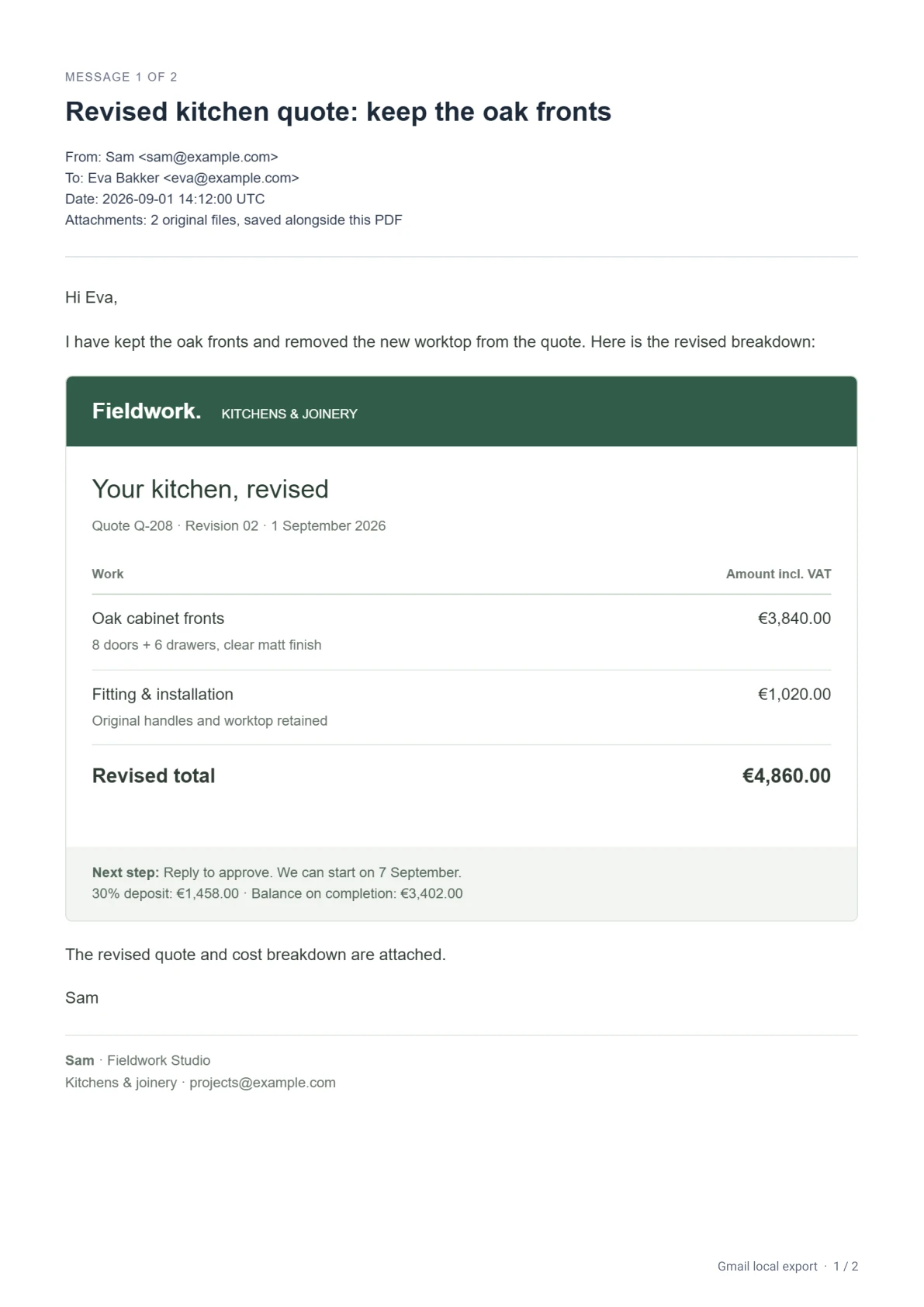
This additional example exports a kitchen quote, an invoice and a travel booking, with 3 conversation PDFs, 7 emails and 5 original attachments. The emails are synthetic examples, exported by the actual app.