 Local Export for Gmail
Local Export for Gmail keeps original attachments as separate files beside each conversation PDF. Inline image attachments are preserved too. Supported images can render inside the PDF; available external pictures can load through Google’s Gmail image proxy. A missing picture is reported instead of being silently treated as saved.
Three kinds of image or attachment
- Original attachments
- A receipt PDF, CSV spreadsheet, photo or project ZIP sent as a file. These are kept in their original formats in the conversation’s attachments folder.
- Inline image attachments
- Images included in the original email and referenced inside its body, often using a content ID such as
cid:. A logo, screenshot or signature picture can use this method. The original image file is kept, and supported formats can also be rendered in the PDF. - External pictures
- Images hosted outside the email. When Gmail makes a supported picture available through its Google image proxy, Local Export can include it in the PDF. It does not fetch arbitrary sender-hosted image URLs directly.
What you will find after exporting
Each selected conversation gets a folder containing its chronological PDF and, when present, an attachments folder. Attachment filenames receive numeric prefixes to prevent collisions. The report retains their original names, sizes and SHA-256 checksums. An attachment is not converted into a PDF page or merged into the conversation PDF.
This matters for invoices and handovers: the conversation stays readable, while its original receipt PDF, editable spreadsheet or project file can still be opened with the appropriate application. Preserving the original bytes also makes it possible to compare a saved attachment’s checksum with another copy. It does not certify who sent a message or prove that its content is authentic.
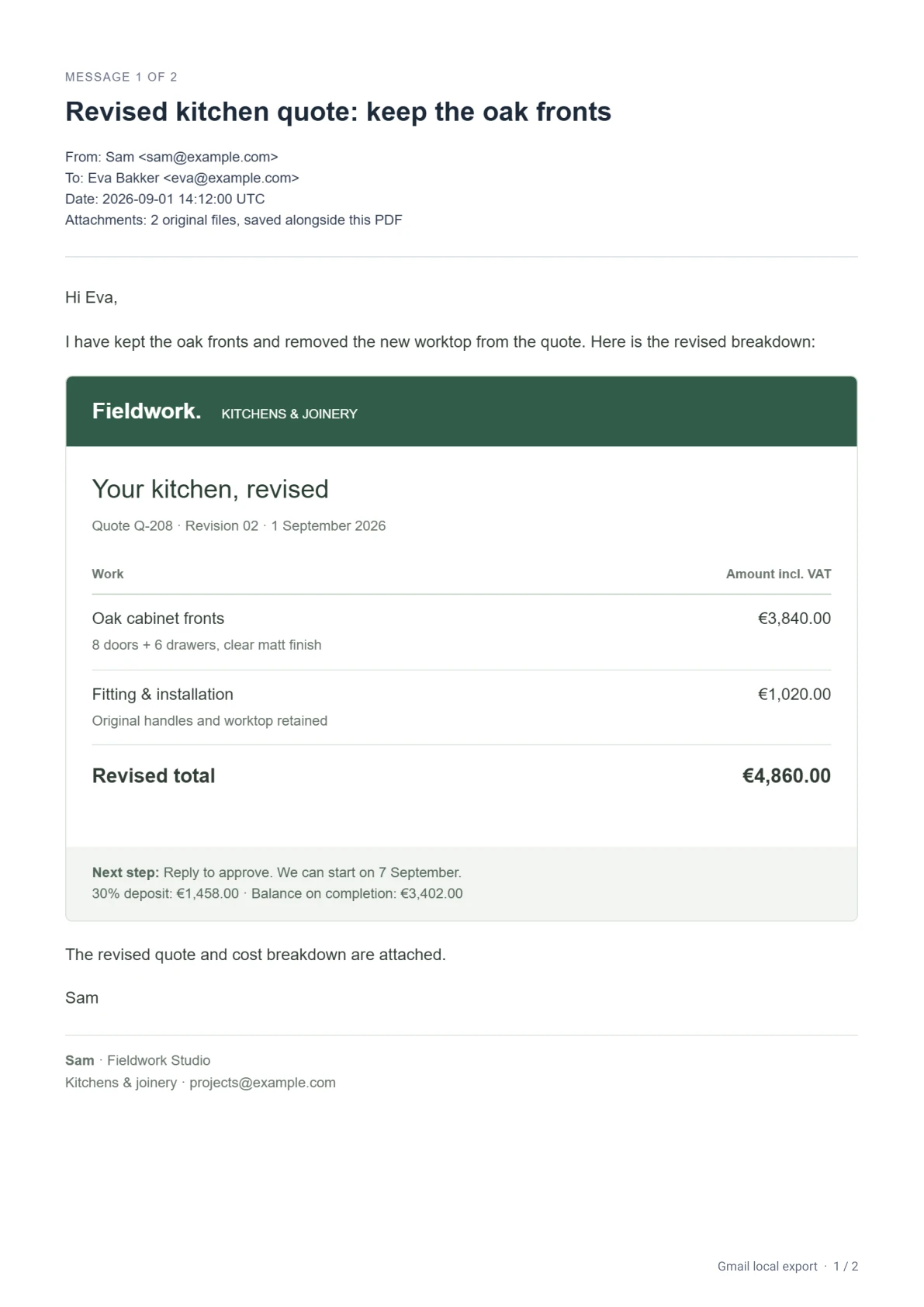
Why can an image be missing from a PDF?
An external image may no longer be available through Gmail’s proxy, or its format or size may fall outside supported limits. External images can also be disabled in Export details. A PDF renderer cannot always reproduce an email’s original browser layout, fonts or interactive content.
Local Export marks unavailable image locations in the PDF and records image notices in the export report. A saved archive can therefore contain the original attachment successfully while still reporting a picture that could not be rendered in the PDF. An inline file’s preservation and its visual rendering are separate outcomes. Check both the conversation PDF and the attachments folder if a picture matters to your record.
Explicit unlabeled external 1-by-1-pixel images are omitted. This is a narrow image rule, not a promise to detect every tracking technique. The extension does not promise to reproduce every possible email template perfectly.
Can I stop external images from loading?
Yes. Open Export details and turn off Include external images before exporting. Original inline attachment files remain part of the export. Supported embedded images can be handled from the email itself; the external-image setting controls the separate proxy image requests.
Email processing happens on your device. Your messages and attachment files are not uploaded to Sami Studio. Gmail and internet access are still required, and loading external pictures can contact Google’s Gmail image proxy. Checkout and Pro licensing are separate from email processing. Read the privacy policy for the full explanation.
How do I export them?
Install Local Export for Gmail in desktop Chrome, refresh Gmail, select the conversations and click Export selected. Review the list and image setting, then choose Export ZIP. Keep Gmail and the export tab open. After saving, extract the ZIP to read the PDFs, open the original files and inspect export-report.json.
Free and Pro use the same image and attachment handling. Free supports up to 3 conversations per export; Pro is €29 once for up to 50 conversations per export on 2 active browsers. Both plans have the same safety limits. See all features, privacy details and limits, or follow the full PDF and attachments guide.